To reach the Users section, click through the following:
Settings -> Company Settings -> Users tab
Search for Users
Use the search functionality to quickly locate users within your organization.
Invite New Users
New users can be invited directly from the Users page:
-
Click on the Invite New User button.
-
Enter the email address(es) of the user(s).
-
Click on the Invite Users button.
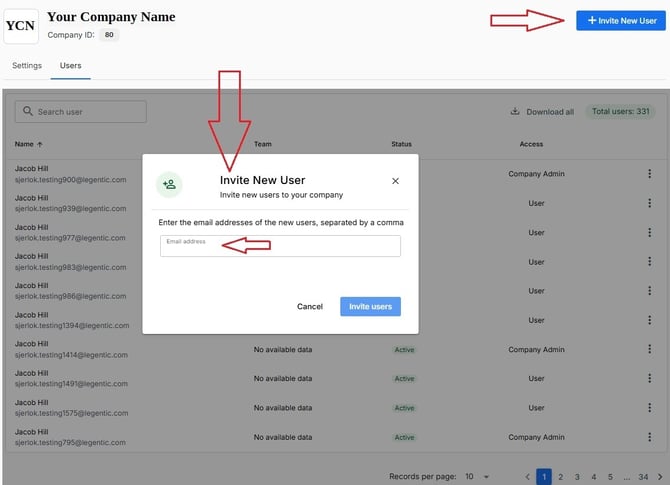
Invited users will receive instructions for accessing the platform via their mailbox.
Activate or Deactivate Users
User accounts can be activated or deactivated as required. Deactivating a user prevents access to the platform without permanently removing the account.
This can be done either from the Users list (by clickling in the ⋮ three dots) or from the specific user's profile (by clicking on the Actions button).
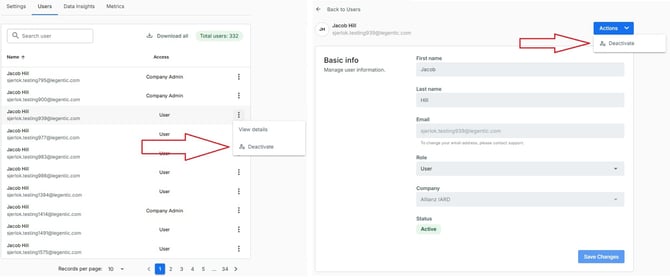
To re-Activate a user, the steps are the same.
Export User Information
Company Admins can download user information for reporting and administrative purposes.
Simply click on the Download all button, next to the User count and a .csv file with all the information will be downloaded to your computer.
This can be useful when reviewing user access and account status across the organization.